46+ Automation Recipes

Mirror Column Automation

Replace mirror columns with normal columns to enhance moday.com Automations

  • Convert currency
  • Copy columns
  • Unlimited users
  • Works in all workspaces
App to Trigger Automations

Mirror Formula Column Automation App to trigger monday.com

Automations using mirror and formula columns, at items and subitem levels

Mirror and formula columns can’t trigger automations in monday.com — until now. Mirror Formula Column Automation instantly copies their values to normal columns so your workflows fire automatically. If a value changes later, the app re-copies it instantly. No extra triggers needed.

Supports items & subitems, formula-to-person assignment, summary columns, currency conversion, and more.

01

Trigger automations on: MIRROR COLUMN CHANGING ITSELF* New Exclusive feature

02

Trigger automations on: MIRROR COLUMN CHANGING ITSELF* New Exclusive feature

03

Trigger automations on: MIRROR COLUMN CHANGING ITSELF* New Exclusive feature

04

Trigger automations on: MIRROR COLUMN CHANGING ITSELF* New Exclusive feature

05

Trigger automations on: MIRROR COLUMN CHANGING ITSELF* New Exclusive feature

Why us

Why Use TransFunnel's Mirror Column Automation App?

Built by certified monday.com engineers

Platinum Partner · since 2021

01

UNLIMITED USERS at no extra cost

02

App available for use in ALL WORKSPACES, in monday platform

03

App available for use in ALL WORKSPACES, in monday platform

Trusted by 100+ customers worldwide

  • 10+ yrs
  • Platinum Partner
  • Unlimited seats
Feature Breakdown

Five ways to put mirror & formula data to work

Mirror column

  • Copy updated Mirror column value to your selected column
  • Copy Mirror column value to your selected column on item creation.
  • Copy Mirror column value to your selected column when item moves groups.
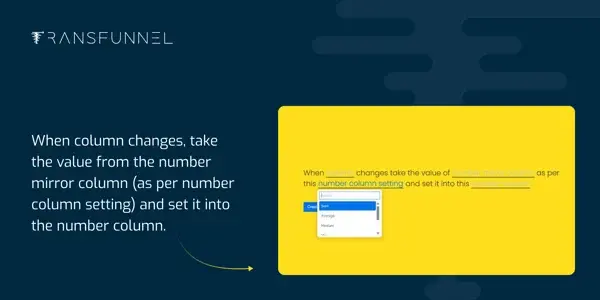
  • Copy Mirror column value to your selected column when another column changes.
  • Update selected column with Mirror value when Status changes.
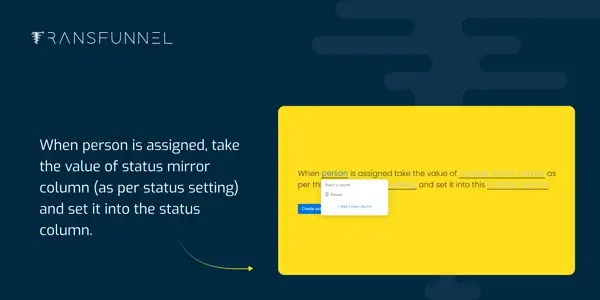
  • Copy Mirror value to selected column when a person is assigned.

Mirror column

Mirror column

  • Copy updated Mirror column value to your selected column
  • Copy Mirror column value to your selected column on item creation.
  • Copy Mirror column value to your selected column when item moves groups.
  • Copy Mirror column value to your selected column when another column changes.
  • Update selected column with Mirror value when Status changes.
  • Copy Mirror value to selected column when a person is assigned.

Mirror column

Mirror column

  • Copy updated Mirror column value to your selected column
  • Copy Mirror column value to your selected column on item creation.
  • Copy Mirror column value to your selected column when item moves groups.
  • Copy Mirror column value to your selected column when another column changes.
  • Update selected column with Mirror value when Status changes.
  • Copy Mirror value to selected column when a person is assigned.

Mirror column

Mirror column

  • Copy updated Mirror column value to your selected column
  • Copy Mirror column value to your selected column on item creation.
  • Copy Mirror column value to your selected column when item moves groups.
  • Copy Mirror column value to your selected column when another column changes.
  • Update selected column with Mirror value when Status changes.
  • Copy Mirror value to selected column when a person is assigned.

Mirror column

Mirror column

  • Copy updated Mirror column value to your selected column
  • Copy Mirror column value to your selected column on item creation.
  • Copy Mirror column value to your selected column when item moves groups.
  • Copy Mirror column value to your selected column when another column changes.
  • Update selected column with Mirror value when Status changes.
  • Copy Mirror value to selected column when a person is assigned.

Mirror column

Features

Smart New Features

Advanced Filtering & Availability Check

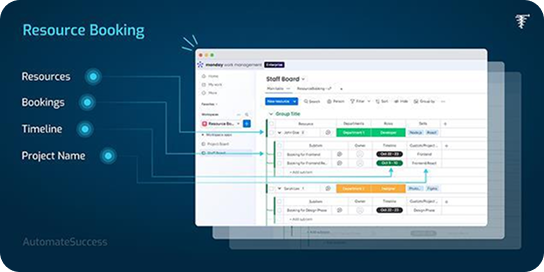
Instantly check resource availability and filter by type, skill, or time slot before booking.

Full-Time and Multi-Resource Booking

Book single or multiple resources at once for any timeframe — no repetitive actions required.

Conflict Detection

The app automatically highlights overlapping bookings, helping teams maintain clear, conflict-free schedules.

How to Use

How to Use Resource Booking App

Only admins have permission to connect a board.

  • 01 Install the app from the monday.comMarketplace
  • 02 Select your resources board or create one using the setup wizard
  • 03 icon Add resources (e.g., people, equipment, meeting rooms, etc.)
  • 04 Filter and select available resources for your desired date and time
  • 05 rsapp_icon Book multiple resources simultaneously with just one click
  • 06 View and manage all bookings directly from your monday board

Note: Should have three or more group in order to create multiple boards.

Access Permission:
Admin: Full access
Member: Can use the app
Viewer: No access
Guest: No access

Custom URL-Based QR Code Generation
New EXCLUSIVE Feature:

Dynamically create QR codes from custom URLs stored in specific columns:

  • On status change (to/from specific values): Extract the URL from a designated column, generate a QR code, and save it in the target column.
  • On any status change: Automatically fetch the URL and generate a QR code.
  • On subitem status update: Pull the URL from the subitem’s column and store the QR code in the chosen subitem column.

This is perfect for linking external resources, files, or tools directly from board items and subitems.

Full-Time and Multi-Resource Booking

Book single or multiple resources at once for any timeframe — no repetitive actions required.

sd

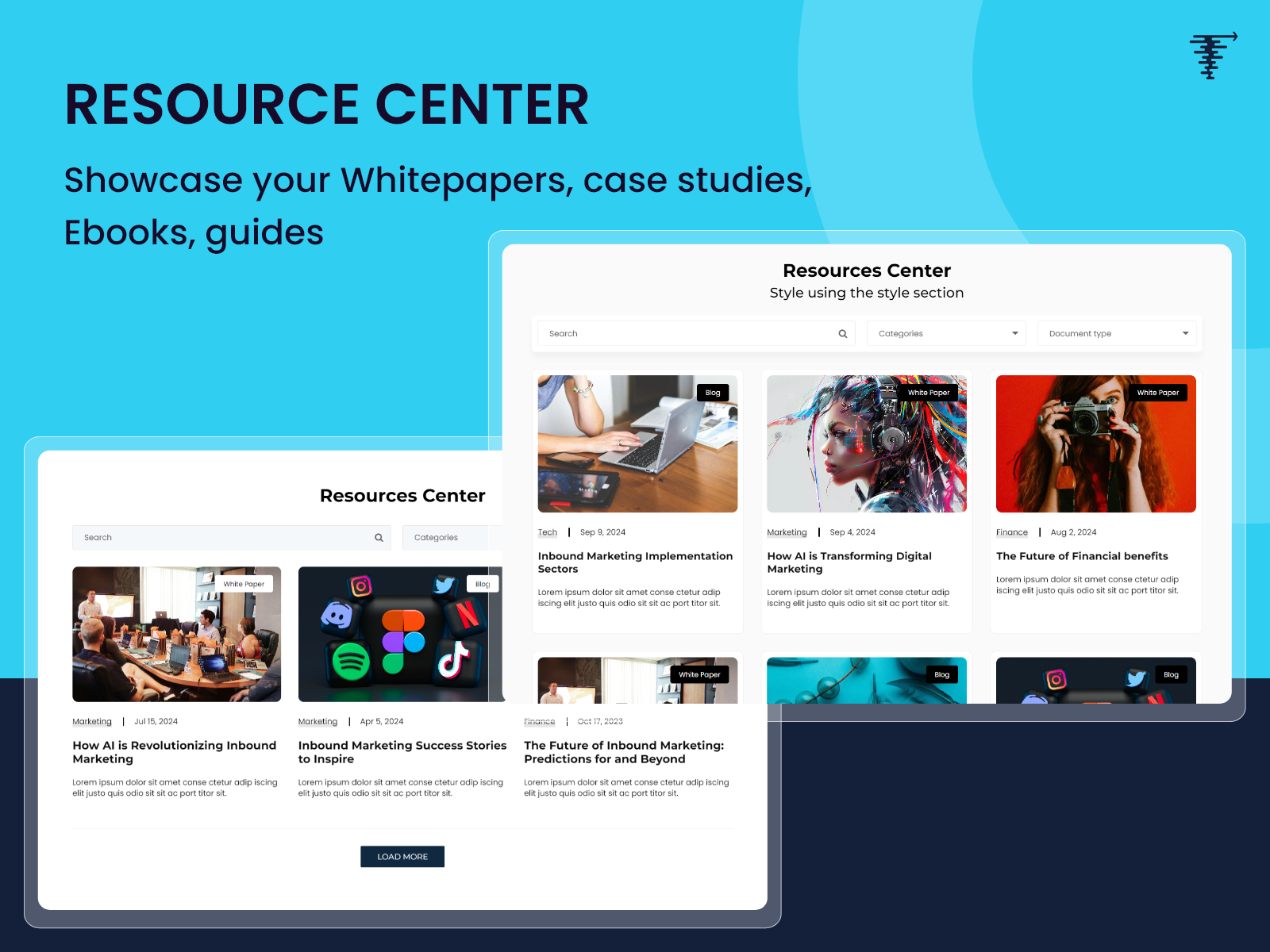
Resource-Center
Without vs With

Without vs With Bulk Task Reassignment

Without the app

A Queue of Small, Repetitive Clicks.

  • Manual updates
  • Open each board individually
  • Change assignments item by item
  • Very time consuming
Time saved 92%
With Bulk Reassignment

One action, the entire roster moved.

  • Manual updates
  • Open each board individually
  • Change assignments item by item
  • Very time consuming
Time saved 10%
FAQ

Frequently Asked Questions

Everything you need to know about our HubSpot services. Can't find an answer? Chat with our team.