Setting up Google Ads Integration App

Get a seamless way to view, manage, and analyze your advertising performance directly within monday boards, eliminating the need to switch between multiple platforms.

Monday Platinium

Monitor and track the performance of your Google Ads campaigns seamlessly within Monday.com.

The Google Ads Integration App is a powerful tool designed to help businesses streamline their digital marketing workflows by connecting their Google Ads account with monday.com, a leading project management platform.

01

Trigger automations on: MIRROR COLUMN CHANGING ITSELF* New Exclusive feature

02

Track key Google Ads performance metrics directly inside monday.com

03

Analyze campaign performance over time and compare it with other marketing initiatives in one unified workspace

04

Make smarter, data-driven decisions with real-time insights and fully customizable dashboards

Why us

Why Use Transfunnel’s Google Ads Integration App

Built by certified monday.com engineers

Platinum Partner · since 2021

01

Works across ALL WORKSPACES

02

Supports UNLIMITED USERS

03

Centralized reporting with real-time data

Trusted by 100+ customers worldwide

  • 10+ yrs
  • Platinum Partner
  • Unlimited seats

Five steps to Integrate Google Ads App

  • Log in to your monday.com account.
  • Go to the Apps Marketplace.
  • Search for 'Google Ads Integration'.
  • Click 'Install' to add the app.
Log in to your monday.com account.
Board Screen Image
Go to the Apps Marketplace.
Board Screen Image
Search for 'Google Ads Integration'.
Board Screen Image
Click 'Install' to add the app.
Board Screen Image

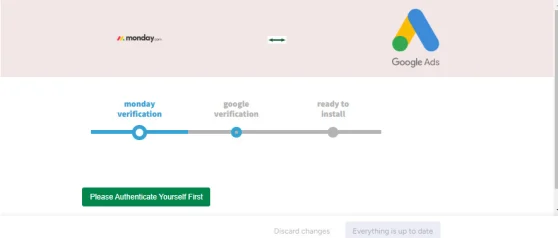
First, connect your monday.com account:

  • Open the app.
  • Click 'Connect monday Account'.
  • Next, connect your Google account:
Open the app.
Board Screen Image
Click 'Connect monday Account'.
Board Screen Image
  • Allow the app to access your account.  
Next, connect your Google account:
Board Screen Image
  • Click ‘Connect Google Account’.  
  • Log in to your Google account and allow access 

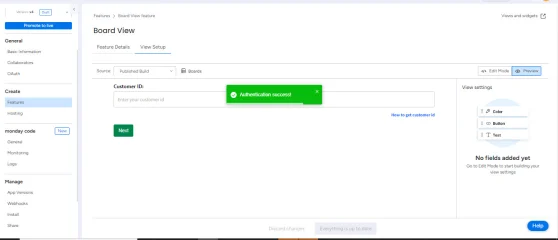
  • Find your Customer ID by following this link:
  • Enter your Customer ID in the app.
  • Click 'Save'.
Find your Customer ID by following this link:
monday-auth-screen-addsaccount-id
Click 'Save'.
monday-auth-screen-addsaccount-id

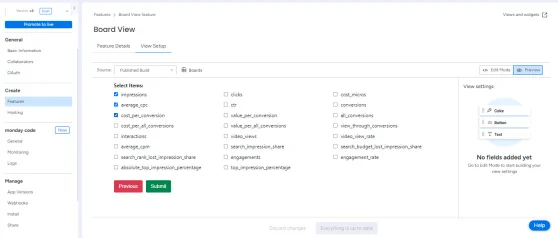
Select the Google Ads data you want to display, for example:

  • Impressions
  • Clicks
  • Conversions
  • Cost
  • Use the checkbox to pick up the data to display.
Impressions
monday-auth-screen-adds-settings
Clicks
monday-auth-screen-adds-settings
Conversions
monday-auth-screen-adds-settings
Cost
monday-auth-screen-adds-settings
Use the checkbox to pick up the data to display.
monday-auth-screen-adds-settings

  • Click the 'Submit' button.
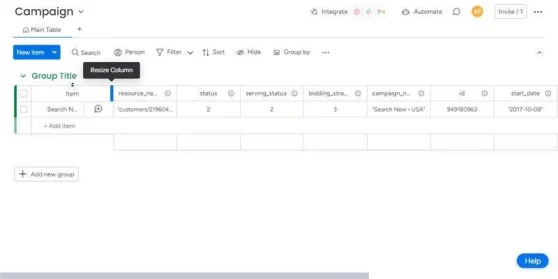
  • Your Google Ads data will appear on your monday board named “Ads Campaigns Board".
Click the 'Submit' button.
Board-screens
Your Google Ads data will appear on your monday board named “Ads Campaigns Board".
Board-screens