Mirror Formula Column Automation App to trigger monday.com Automations in items and sub-items levels
Mirror and formula columns can’t trigger automations in monday.com — until now. Mirror Formula Column Automation instantly copies their values to normal columns so your workflows fire automatically. If a value changes later, the app re-copies it instantly. No extra triggers needed.
Supports items & subitems, formula-to-person assignment, summary columns, currency conversion, and more.
01
Trigger automations on: MIRROR COLUMN CHANGING ITSELF* New Exclusive feature
02
Seamlessly copy values from a normal column to a Mirror Column based on conditions.
03
Automations can work based on mirror column values.
04
Trigger actions on status changes, new item creation, column updates, person assignment.
05
Combine multiple automations to create efficient workflows, automating entire process.
Why us
Why Use TransFunnel's Mirror Column Automation App?
App available for use in ALL WORKSPACES, in monday platform
02
UNLIMITED USERS at no extra cost
03
TransFunnel – monday.com's Trusted PLATINUM SOLUTIONS partner – Premium Support
Trusted by 1000+ customers worldwide
10+ yrs
Platinum Partner
Unlimited seats
Feature Breakdown
Five ways to put mirror & formula data to work
Mirror column
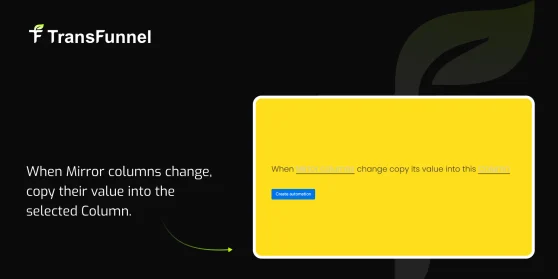
Copy updated Mirror column value to your selected column
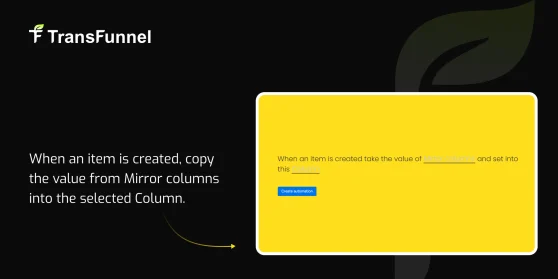
Copy Mirror column value to your selected column on item creation.
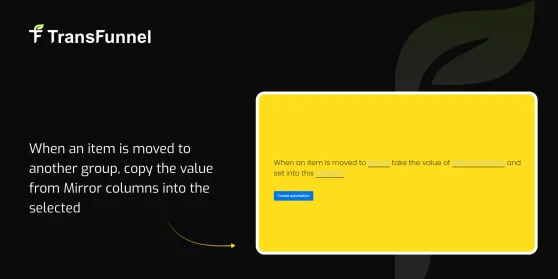
Copy Mirror column value to your selected column when item moves groups.
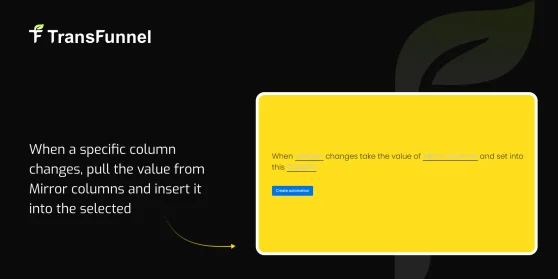
Copy Mirror column value to your selected column when another column changes.
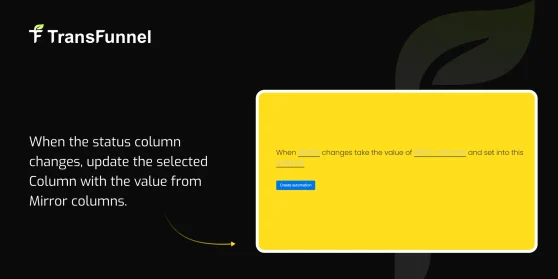
Update selected column with Mirror value when Status changes.
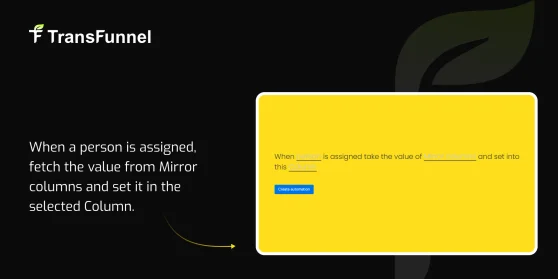
Copy Mirror value to selected column when a person is assigned.
Copy updated Mirror column value to your selected column
New Exclusive Feature:
Unlock automation, filtering, and integration capabilities by making Mirror column data actionable.
Copy Mirror column value to your selected column on item creation.
New Exclusive Feature:
On item creation, automatically copy values from Mirror columns to selected normal columns.
Ensure newly created items carry synced data from connected boards right from the start.
Copy Mirror column value to your selected column when item moves groups.
New Exclusive Feature:
When an item is moved to another group, automatically copy values from Mirror columns to the selected normal column.
Maintain data consistency across groups by syncing connected board values during item movement.
Copy Mirror column value to your selected column when another column changes.
New Exclusive Feature:
When a column changes to a specific value, automatically pull the value from Mirror columns and insert it into the selected normal column.
Trigger condition-based data syncs to reflect connected board values only when certain criteria are met.
Update selected column with Mirror value when Status changes.
New Exclusive Feature:
When the status column changes, automatically copy the value from Mirror columns into the selected normal column.
Trigger data syncs based on status updates to keep key fields aligned with connected board values.
Copy Mirror value to selected column when a person is assigned.
New Exclusive Feature:
When a person is assigned, automatically fetch the value from Mirror columns and copy it into the selected normal column.
Personalize and automate workflows by syncing connected board data as soon as ownership is assigned.
Mirror column with number settings
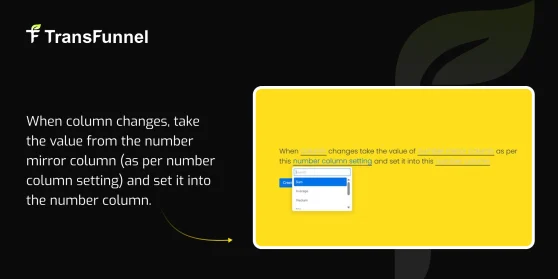
Copy Number Mirror value to Number column when another column changes.
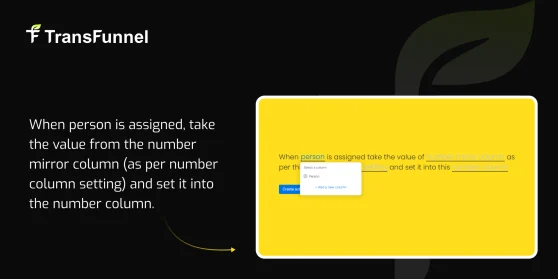
Copy Number Mirror value to Number column when a person is assigned.
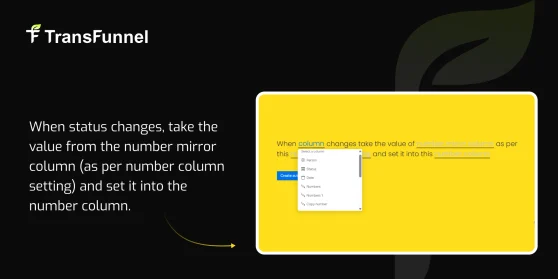
Copy Number Mirror value to Number column when Status changes.
Copy Number Mirror value to Number column when another column changes.
Exclusive Feature:
Perfect for keeping your boards consistent and reducing manual data entry when dealing with synced or mirrored values.
Copy Number Mirror value to Number column when a person is assigned.
Exclusive Feature:
When a person is assigned, fetch the value from the number mirror column based on the configured number column setting.
Copy Number Mirror value to Number column when Status changes.
Exclusive Feature:
Unlock automation, filtering, and integration capabilities by making Mirror column data actionable.
Mirror column with status settings
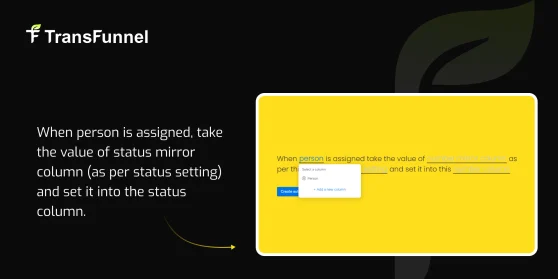
Copy Status Mirror value to Status column when a person is assigned.
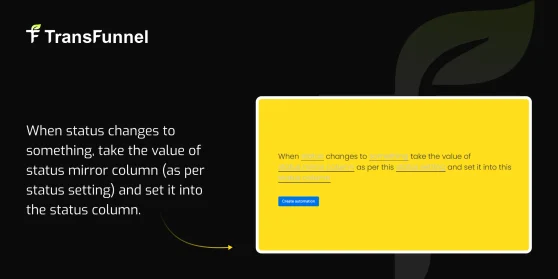
Copy Status Mirror value to Status column when Status changes to a specific value.
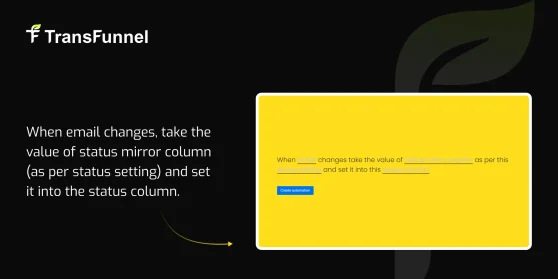
Copy Status Mirror value to Status column when Email changes.
Copy Status Mirror value to Status column when Status changes.
Copy Status Mirror value to Status column when a person is assigned.
New Exclusive Feature:
When a person is assigned, retrieve the value from the status mirror column based on the configured status setting.
Copy Status Mirror value to Status column when Status changes to a specific value.
New Exclusive Feature:
When status changes to a specific value, fetch the corresponding value from the status mirror column using the defined status setting.
Copy Status Mirror value to Status column when Email changes.
New Exclusive Feature:
When the email column changes, retrieve the value from the status mirror column based on the configured status setting.
Copy Status Mirror value to Status column when Status changes.
New Exclusive Feature:
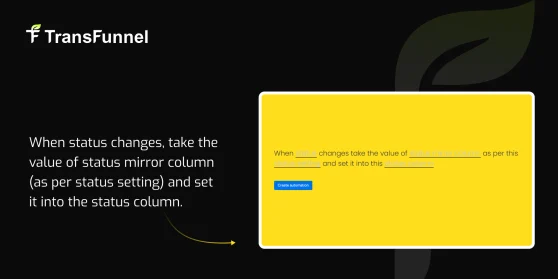
When the status changes, fetch the value from the status mirror column according to the defined status setting.
Formula column
Copy Formula value to target column when it changes.
Set calculated Formula value into column when another column changes.
Copy Formula value to Mirror column when another column changes.
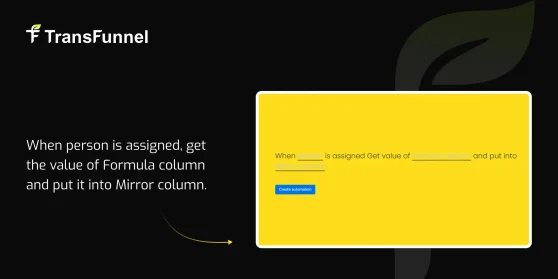
Copy Formula value to Mirror column when a person is assigned.
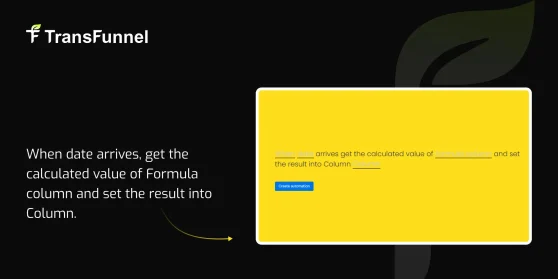
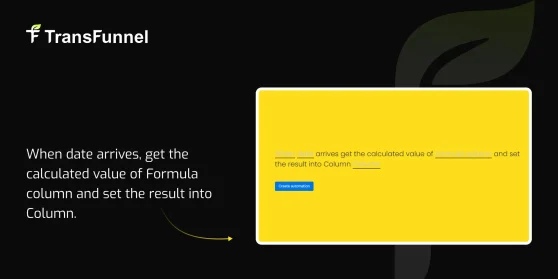
Set calculated Formula value into column when date arrives.
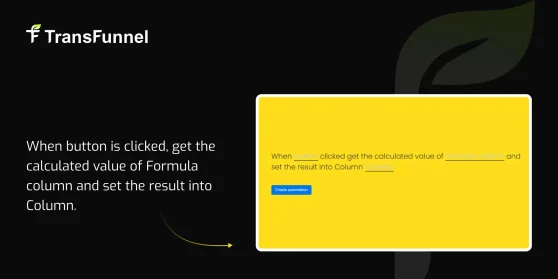
Set calculated Formula value into column when button is clicked.
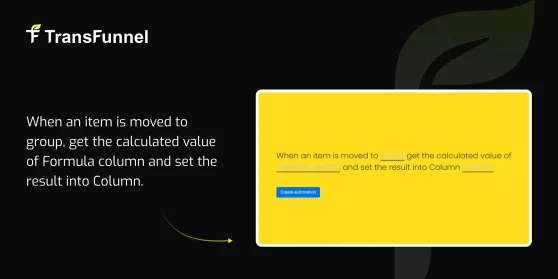
Set calculated Formula value into column when item moves to another group.
Set calculated Formula value into Subitem column when Status changes.
Copy Formula value to target column when it changes.
Exclusive Feature:
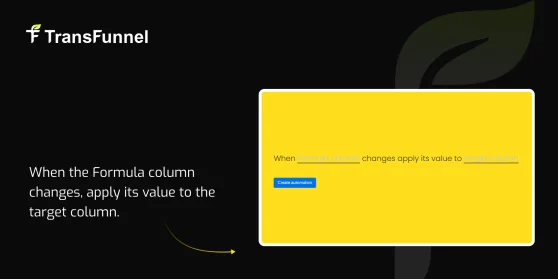
When the Formula column changes, calculate its value based on the formula logic.
Set calculated Formula value into column when another column changes.
Exclusive Feature:
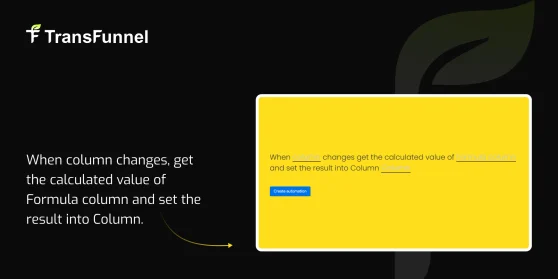
When a column changes, retrieve the calculated value from the Formula column.
Copy Formula value to Mirror column when another column changes.
Exclusive Feature:
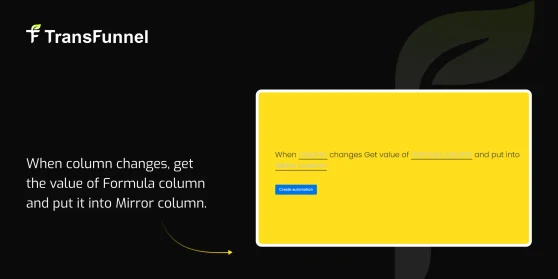
When a column changes, fetch the value from the Formula column.
Copy Formula value to Mirror column when a person is assigned.
Exclusive Feature:
Effortlessly trigger actions when a Mirror Column changes! This powerful automation detects updates in a mirror column’s value and automatically copies it to any column on your board — no manual work needed.
Effortlessly trigger actions when a Mirror Column changes! This powerful automation detects updates in a mirror column’s value and automatically copies it to any column on your board — no manual work needed.
Set calculated Formula value into column when date arrives.
Exclusive Feature:
When the date arrives, fetch the calculated value from the Formula column.
Set calculated Formula value into column when button is clicked.
Exclusive Feature:
When the button is clicked, retrieve the calculated value from the Formula column.
Set calculated Formula value into column when item moves to another group.
Exclusive Feature:
When an item is moved to a group, fetch the calculated value from the Formula column.
Set calculated Formula value into Subitem column when Status changes.
Exclusive Feature:
When the status changes, retrieve the calculated value from the Formula column.
Create Custom Formula
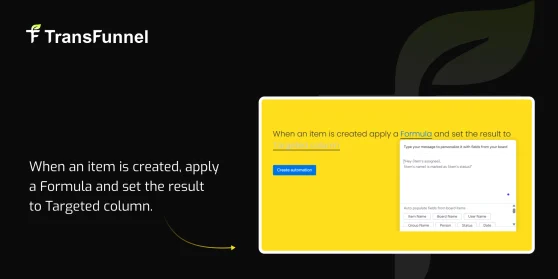
Apply Formula and set result to targeted column on item creation.
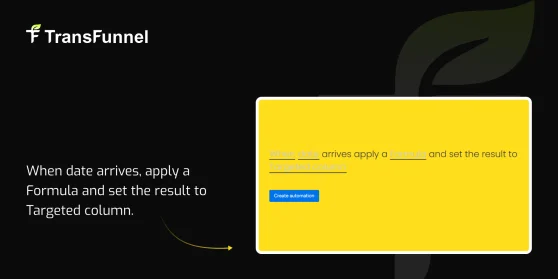
Apply Formula and set result to targeted column when date arrives.
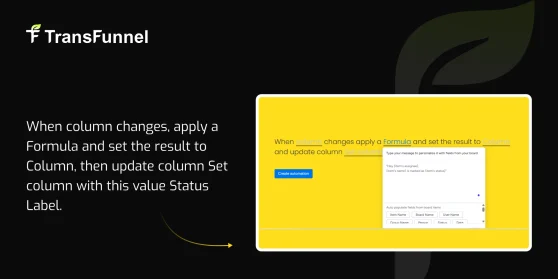
Apply Formula, set result to column, and update Status label when another column changes.
Apply Formula and set result to targeted column on item creation.
Exclusive Feature:
When an item is created, evaluate the defined Formula.
Apply Formula and set result to targeted column when date arrives.
Exclusive Feature:
When the date arrives, evaluate the configured Formula.
Apply Formula, set result to column, and update Status label when another column changes.
Exclusive Feature:
When a column changes, evaluate the defined Formula and set the result into the specified column.
Then, update the Set column with the same value, applying the Status Label as configured.



 01
01
 02
02
 03
03